
Installation guide
- Home
- Installation guide
NIGMATV - Find The Best Suitable Solution
We support all IPTV apps that are compatible with M3U, Xtream Codes, Enigma2, and Portal URL (Mag box). The 4K player app is exclusively available for VIP 4K ULTIMATE on Android systems (including Fire TV), Smart TVs, and Windows. For other devices, please follow the guide below


Setup Guide For Android
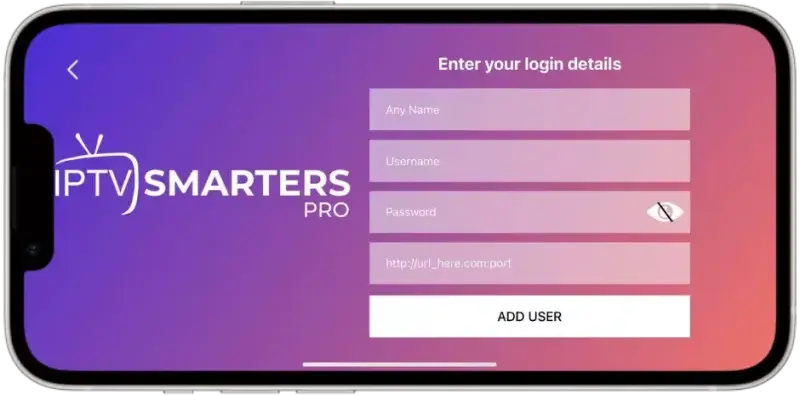
Step 1: Start by downloading IPTV Smarters app through this URL:
https://www.iptvsmarters.com/smarters.apk
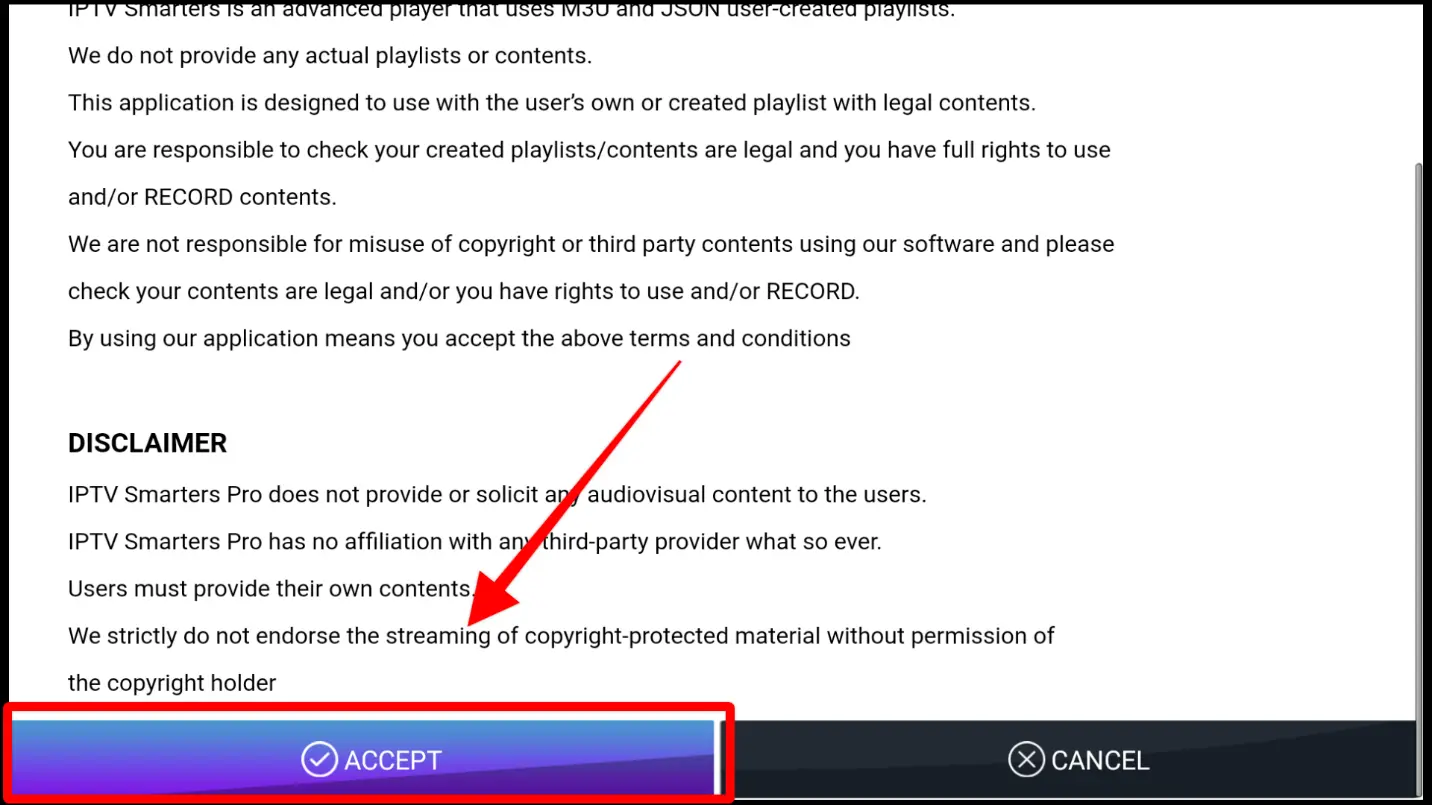
Step 2. Open the Application and Accept the “License Agreement”.
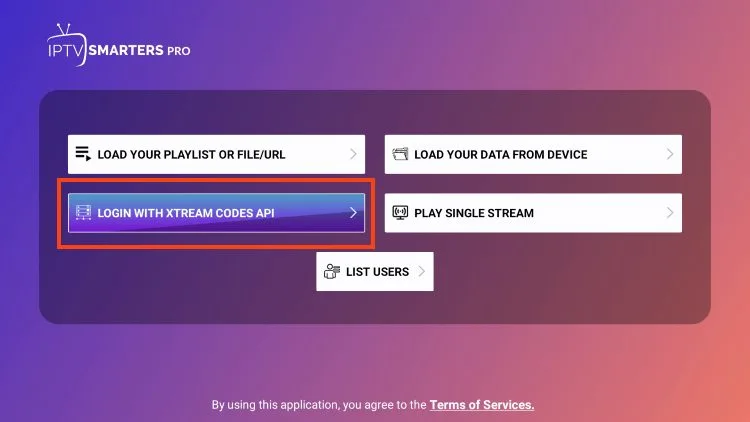
Step 3. Choose Xtream Codes API (XC Codes API)
Step 4. Enter Your Playlist Details ( Username, Password, and HOST URL).
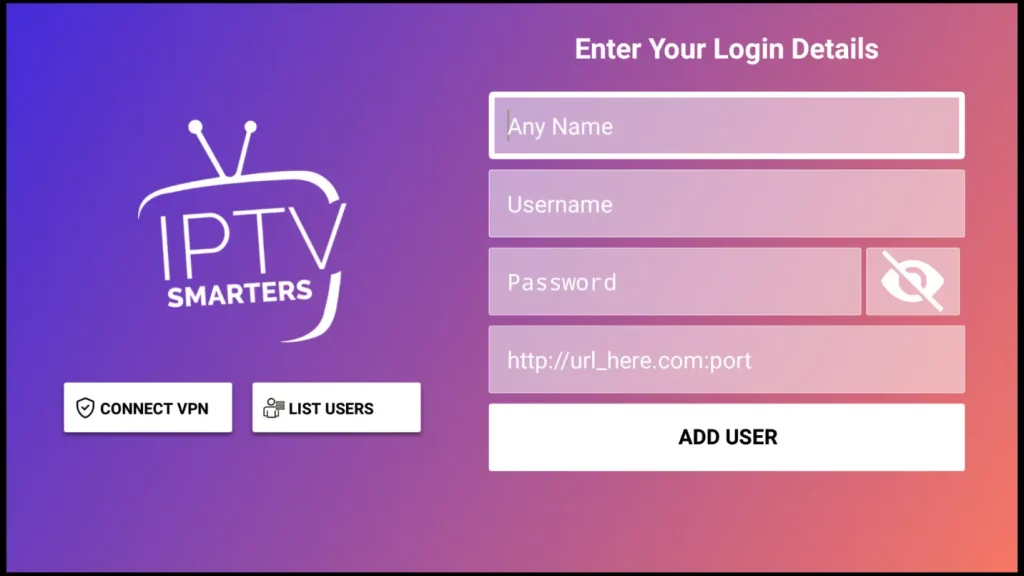
Step 7. Click on “ADD USER”
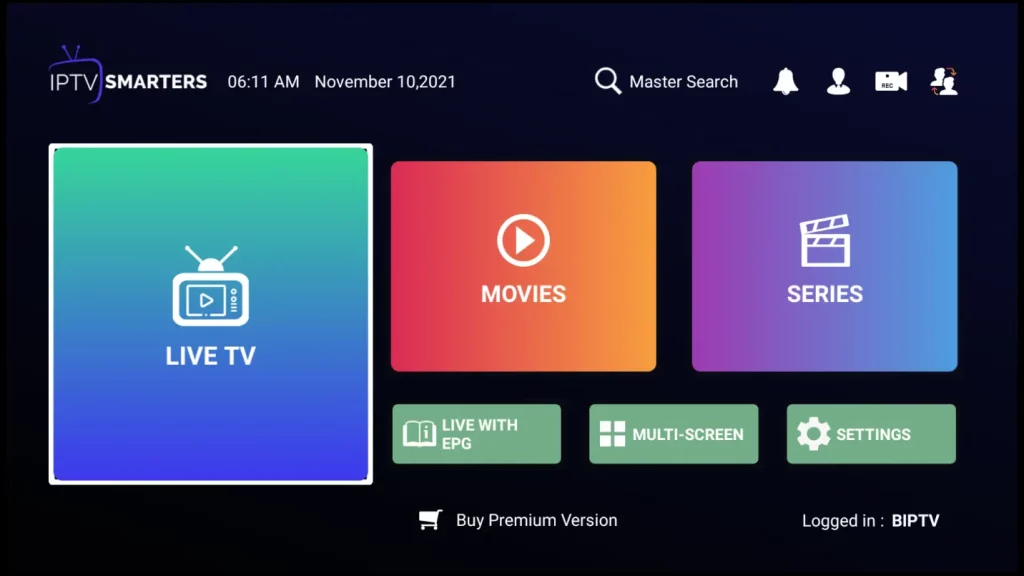
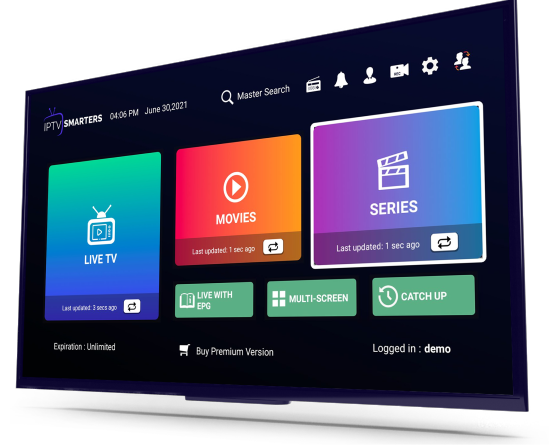
Now you can Select The Category That you want to watch
Done
Setup Guide For Samsung TV
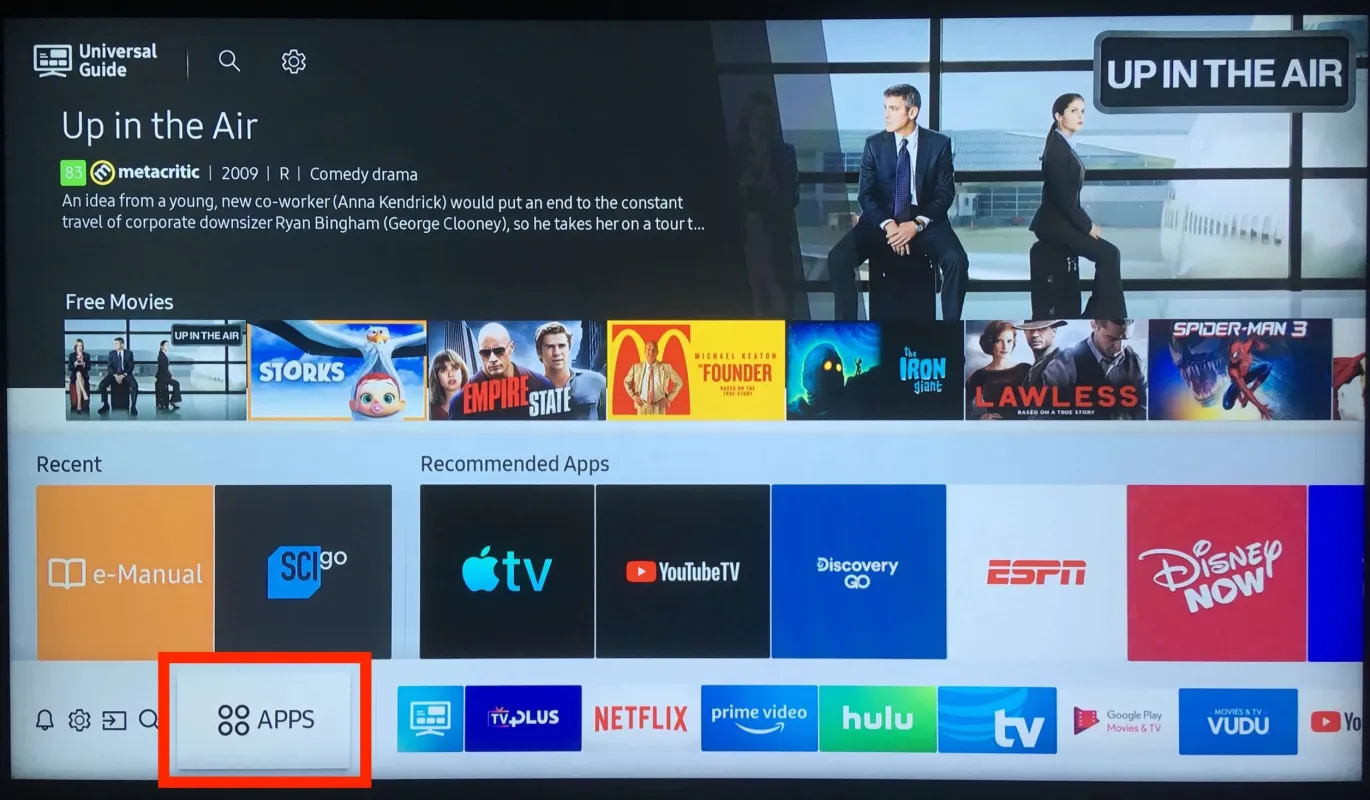
Step 1. Press the Home button on your Smart Remote, then navigate to Apps.
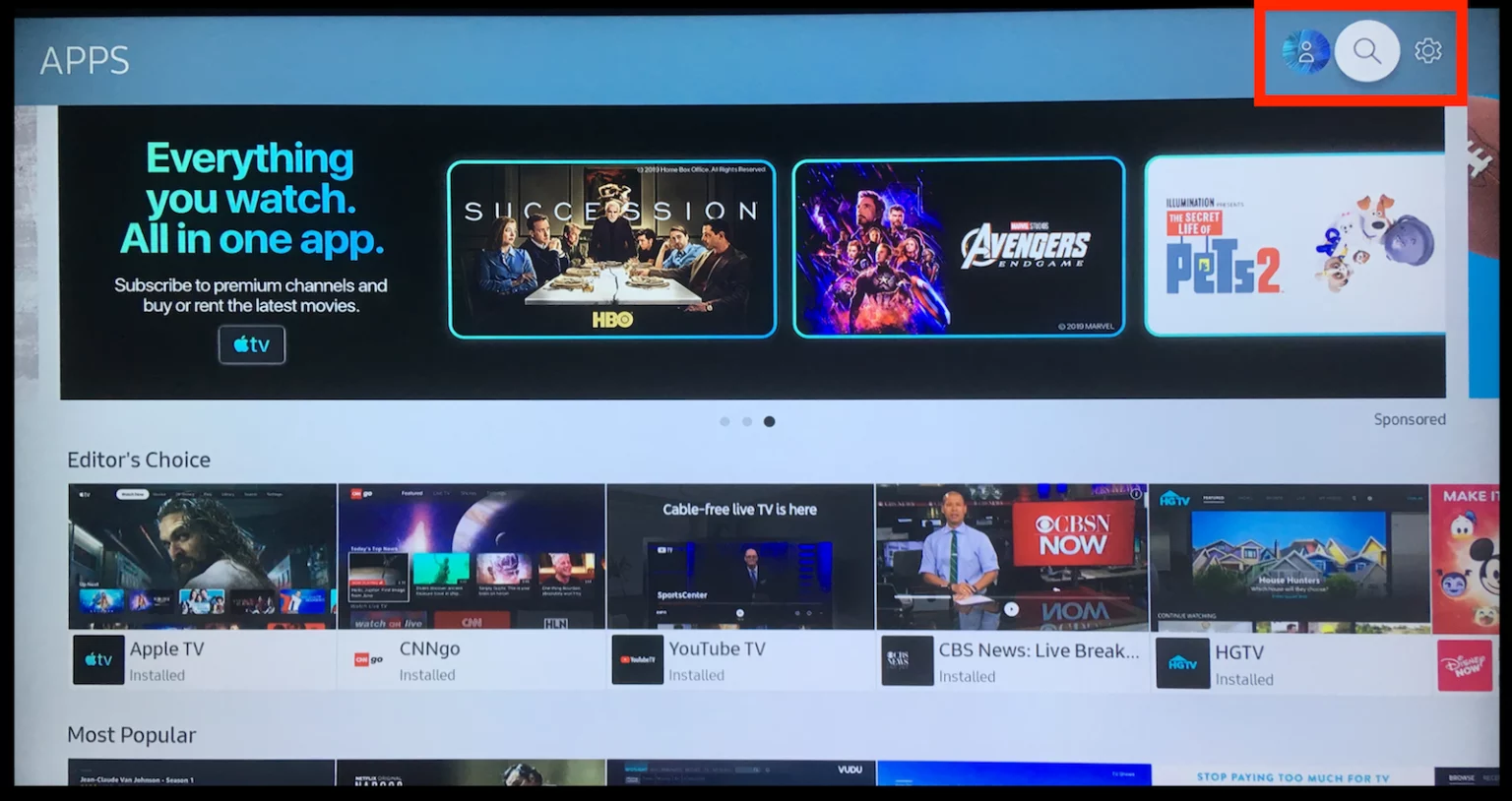
Step 2. Then select the Search icon in the top-right corner.
Step 3. Enter the App Name “IPTV Smarters Pro” and Install it.
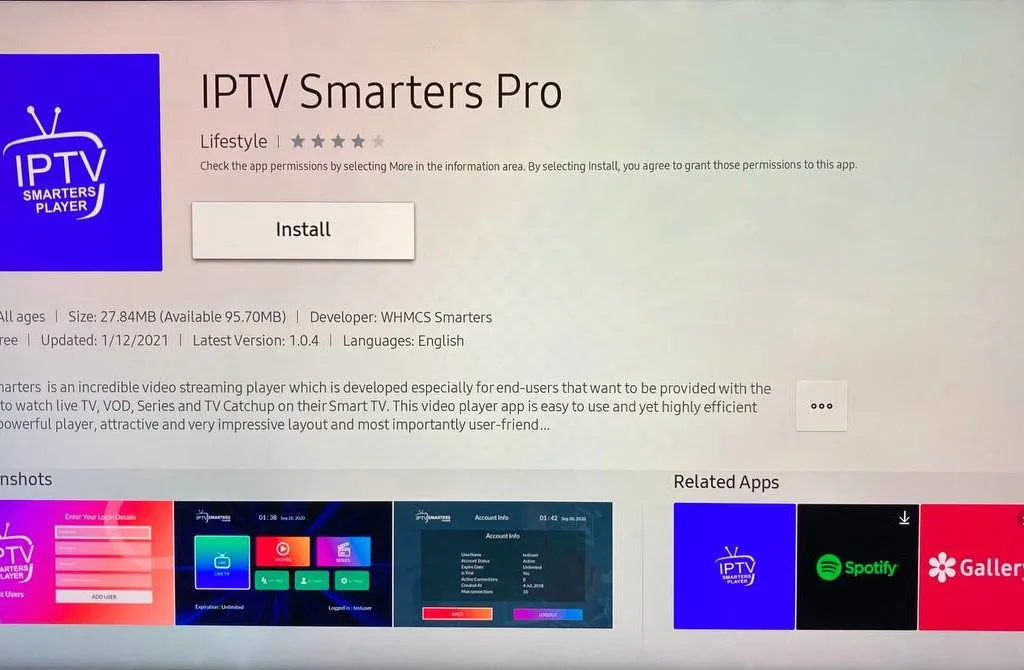
Step 4. Open the Application and Accept the “License Agreement”.
Step 5. Choose Xtream Codes API (XC Codes API)
Step 6. Enter Your Playlist Details ( Username, Password, and Server URL).
Step 7. Click on “ADD USER”
Now you can Select The Category That you want to watch
Done
uide For Android
Step 1: Start by downloading IPTV Smarters app through this URL:
https://www.iptvsmarters.com/smarters.apk
Step 2. Open the Application and Accept the “License Agreement”.
Step 3. Choose Xtream Codes API (XC Codes API)
Step 4. Enter Your Playlist Details ( Username, Password, and HOST URL).
Step 7. Click on “ADD USER”
Now you can Select The Category That you want to watch
Done
Setup Guide For The FireStick
1. From the home screen of your device, hover over the Find option.
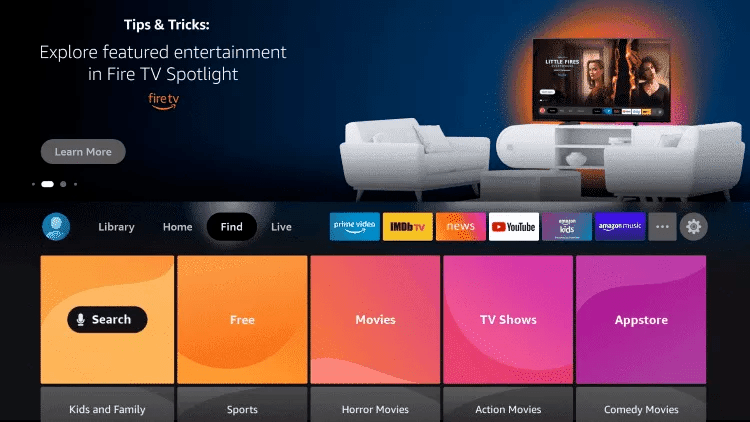
2. Click Search.
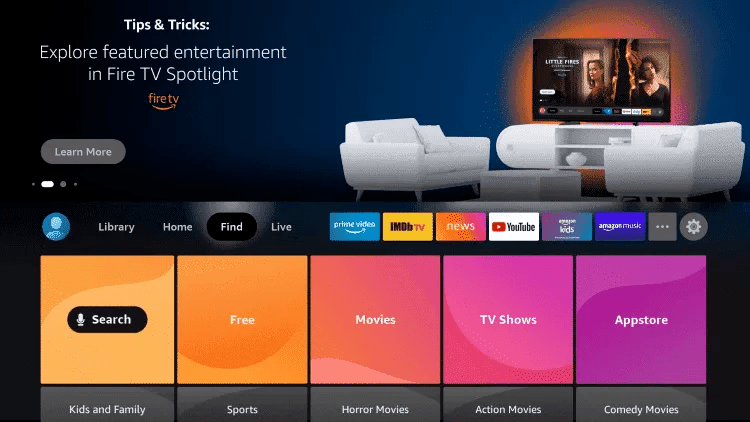
3. Search for and select Downloader.
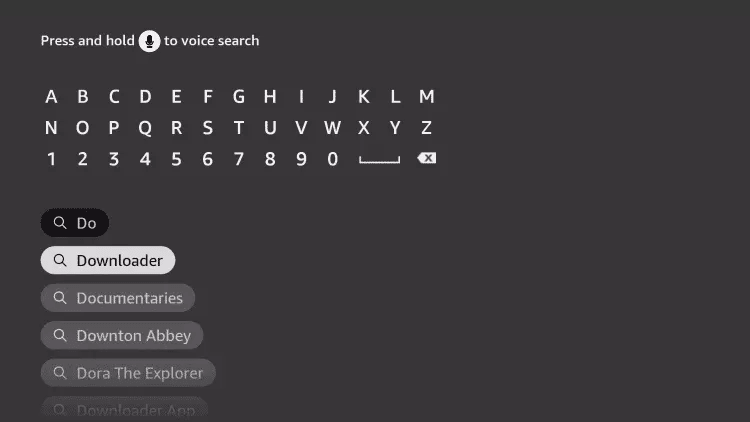
4. Choose the Downloader app.
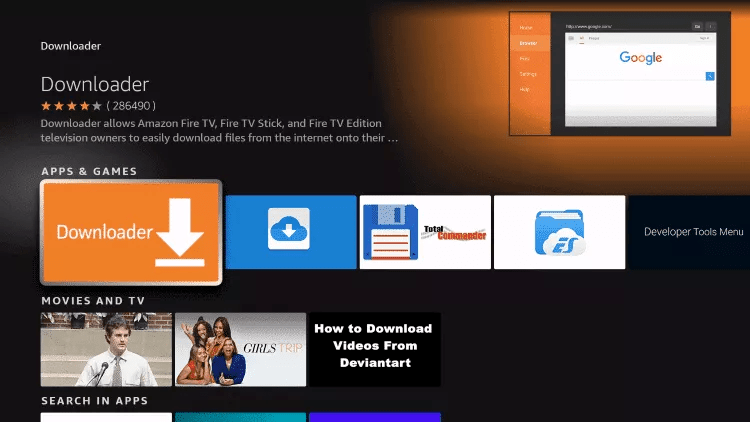
5. Click Download.
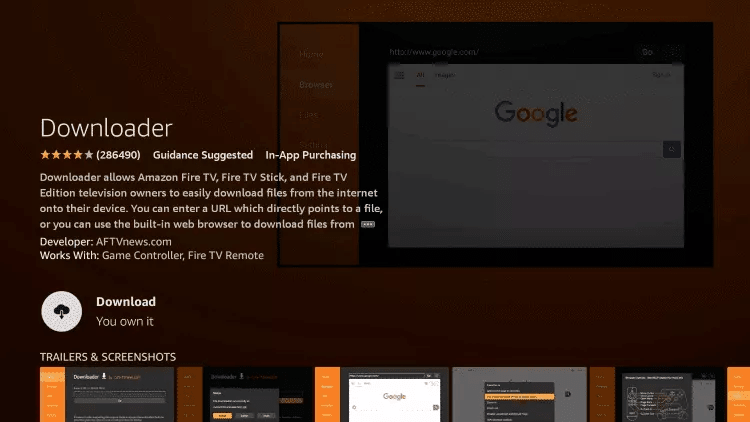
6. Once the app finishes installing click Open.
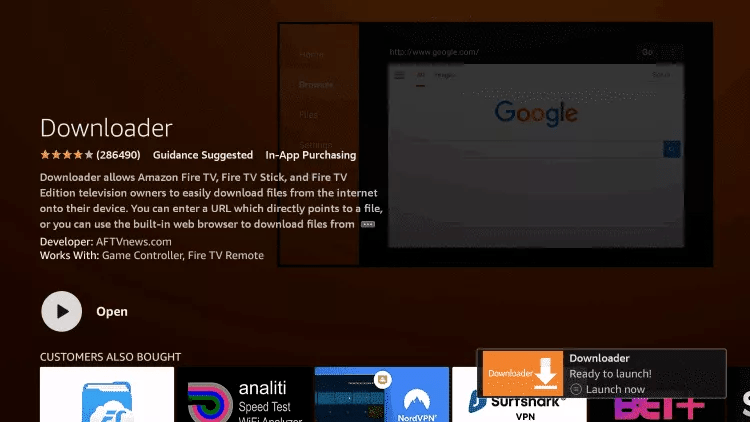
7. Return to the home screen and open Settings.
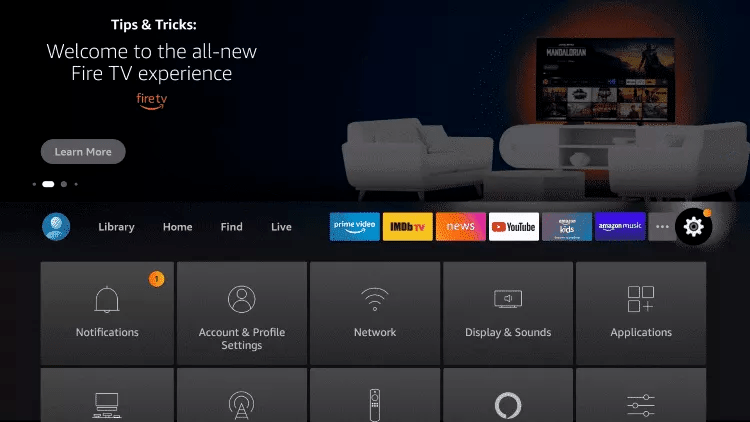
8. Click My Fire TV.

9. Choose Developer options.
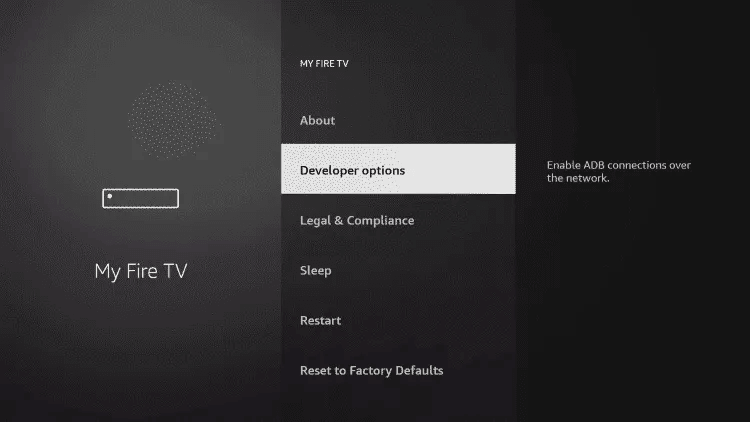
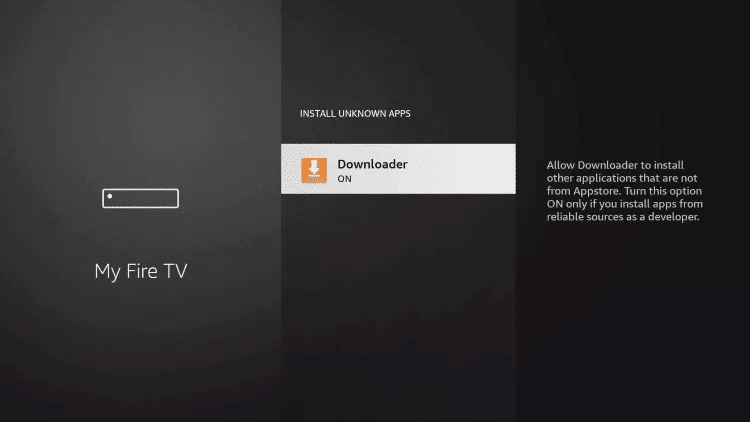
10. Click Install unknown apps.

11. Find the Downloader app and click it.

12. This will turn Unknown Sources to On for the Downloader app. This will enable side-loading on your device.
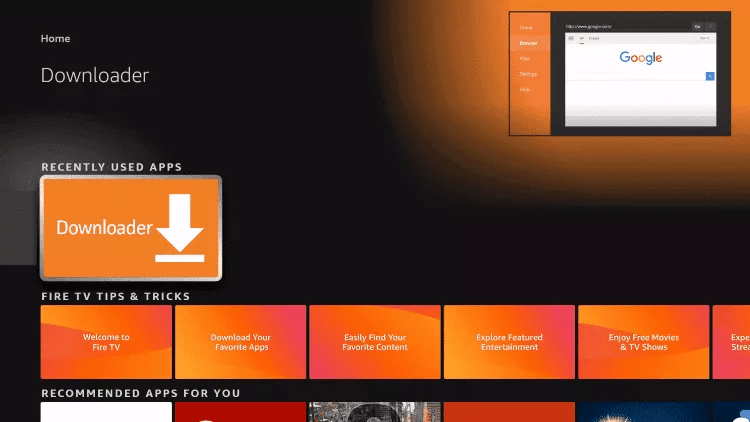
13. Launch Downloader.
14. Click Allow.

15. Click OK.

16. Type the following URL exactly as shown here: https://www.iptvsmarters.com/smarters.apk and click Go.

17. Wait for file to download

18. Click Install.
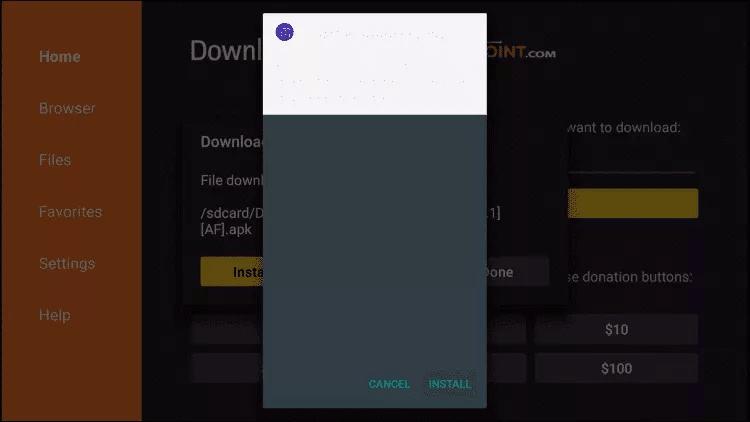
19. Open The App.
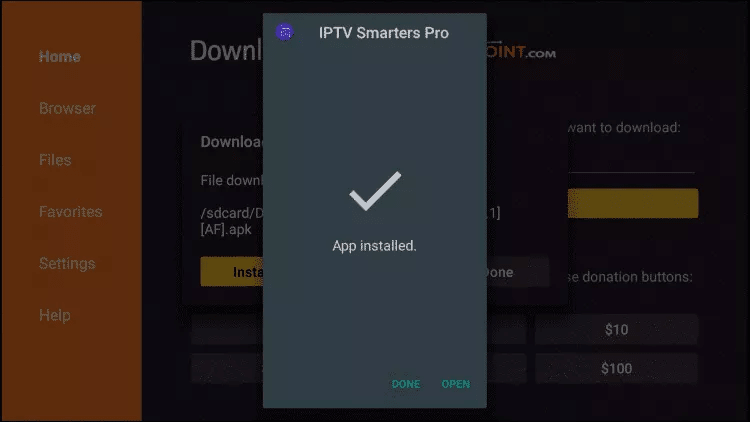
21. Install the App
Step 22. Choose Xtream Codes API (XC Codes API)
Step 23. Enter Your Playlist Details ( Username, Password, and Server URL).
Step 24. Click on “ADD USER”
Now you can Select The Category That you want to watch
Done
Setup Guide For Android TV
Step 1. Press the Home button on your Smart Remote, then navigate to Play Store.
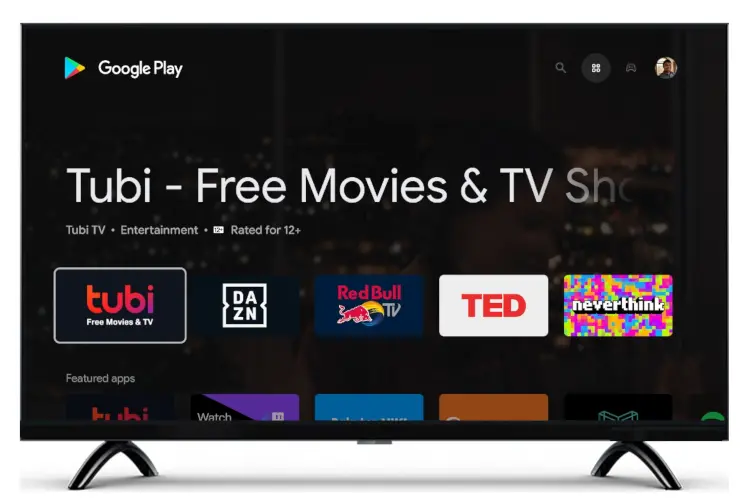
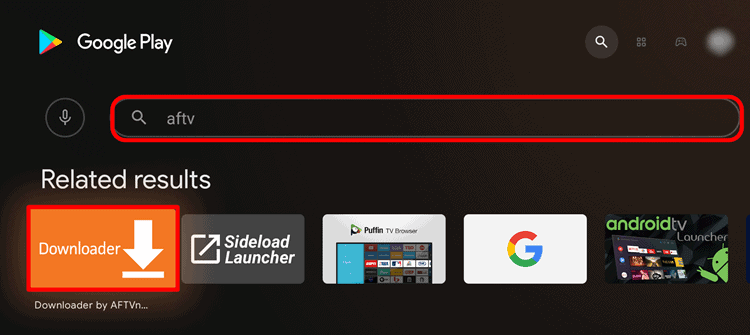
Step 2. Then select the Search icon in the top-right corner and search for “aftv” or “Downloader”
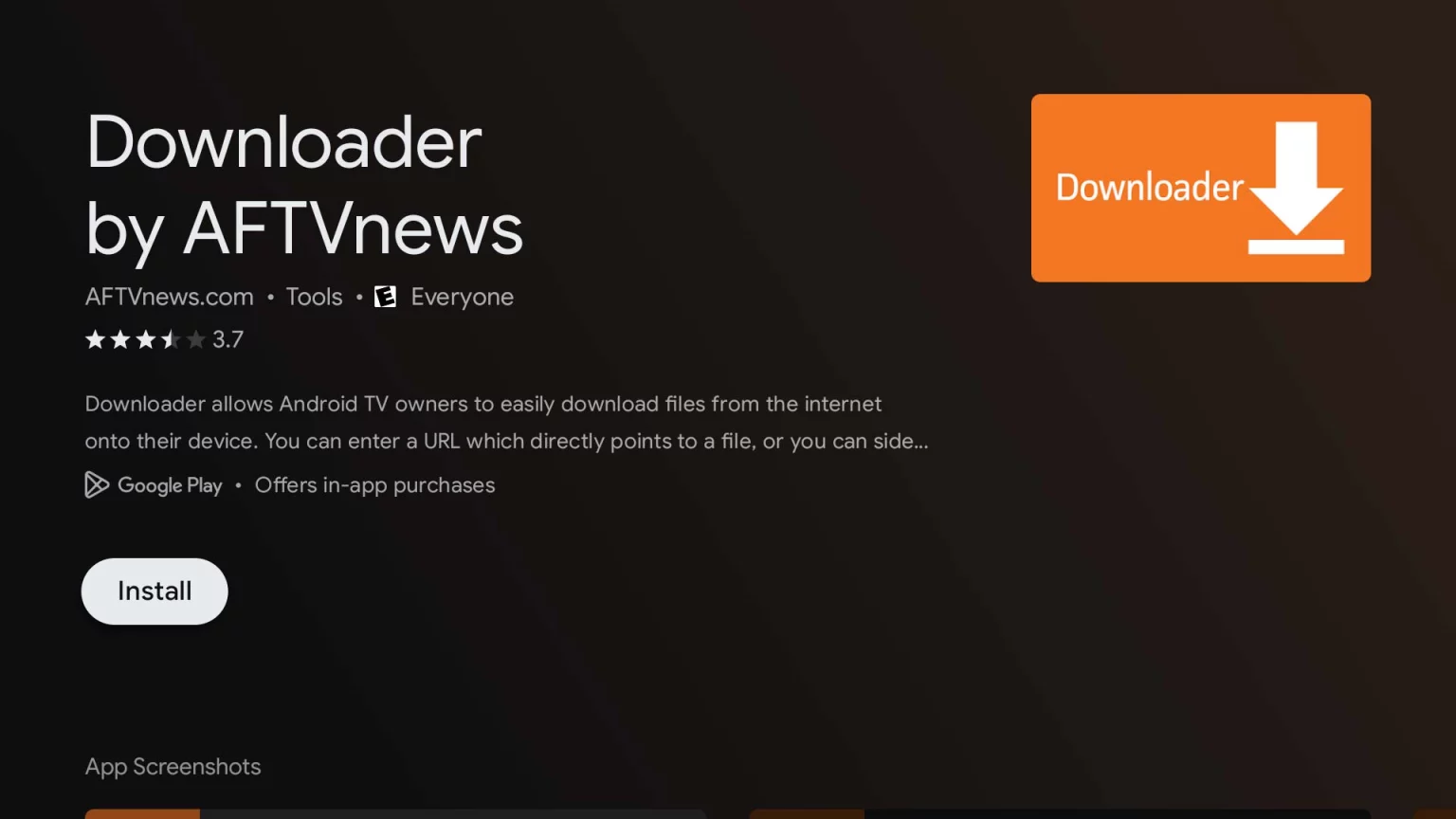
Step 3. Install the App
Step 4. Click Allow
Step 5. Click OK.
Step 5. Type the following URL exactly as shown here: https://www.iptvsmarters.com/smarters.apk and click Go.
Step 6. Wait for the file to download.
Step 7. Click Install.
Step 8. Click Done.
Step 9. Open the Application and Accept the “License Agreement”.
Step 10. Choose Xtream Codes API (XC Codes API)
Step 11. Enter Your Playlist Details ( Username, Password, and Server URL).
Step 11. Click on “ADD USER”
Now you can Select The Category That you want to watch
Done
Setup Guide For LG TV
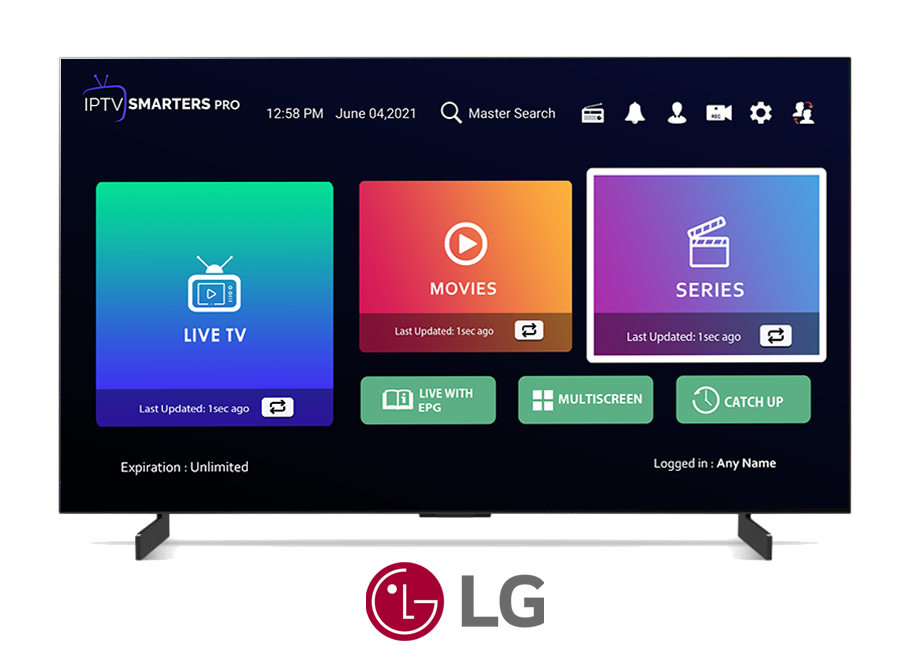
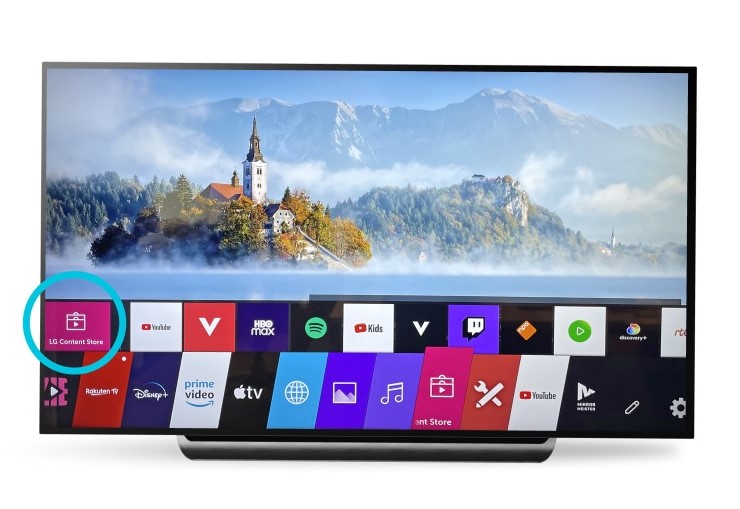
Step 1. Press the Home button on your Smart Remote, then navigate to LG Content Store.
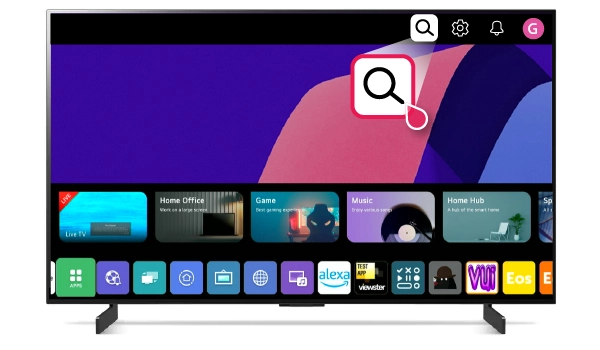
Step 2. Then select the Search icon in the top-right corner.
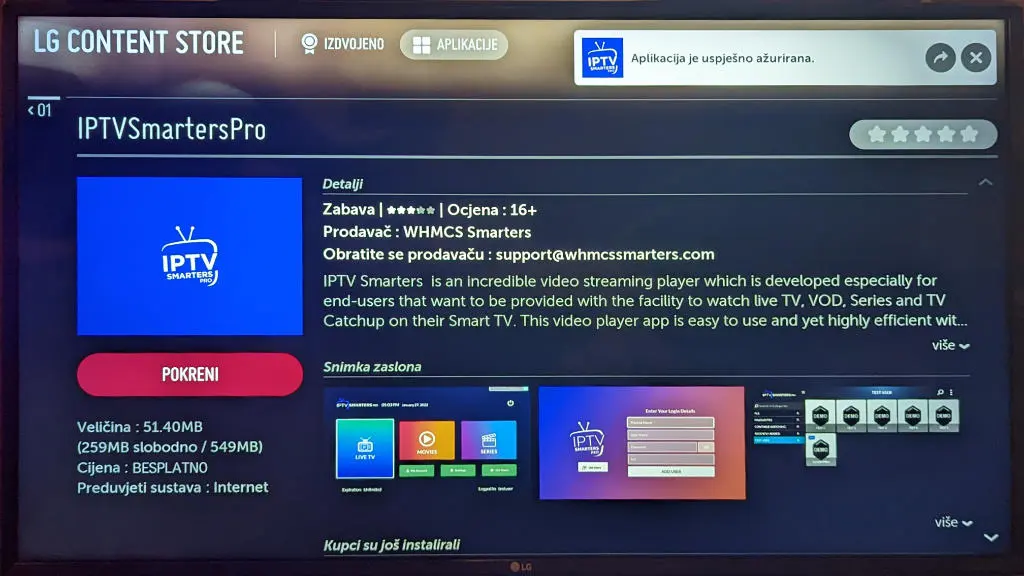
Step 3. Enter the App Name “IPTV Smarters Pro” and Install it.
Step 4. Open the Application and Accept the “License Agreement”.
Step 5. Choose Xtream Codes API (XC Codes API)
Step 6. Enter Your Playlist Details ( Username, Password, and Server URL).
Step 7. Click on “ADD USER”
Now you can Select The Category That you want to watch
Done
Setup Guide For MAG/STB
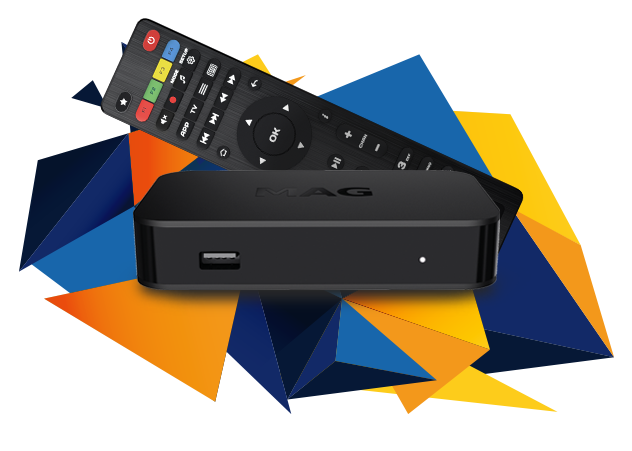
Step 1: Send us the MAC Address of your MAG via Whatsapp
Step 2: After making the payment, we will send you the portal link
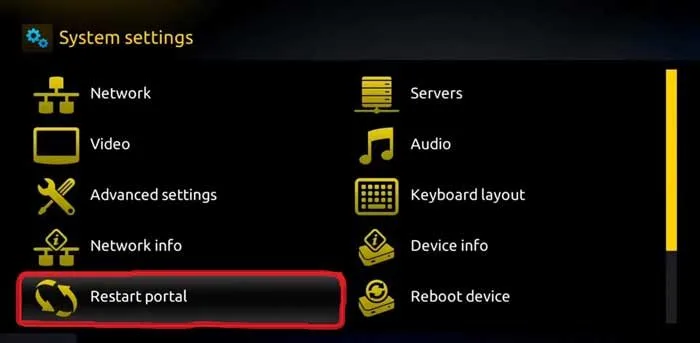
Step 3: Launch System settings.
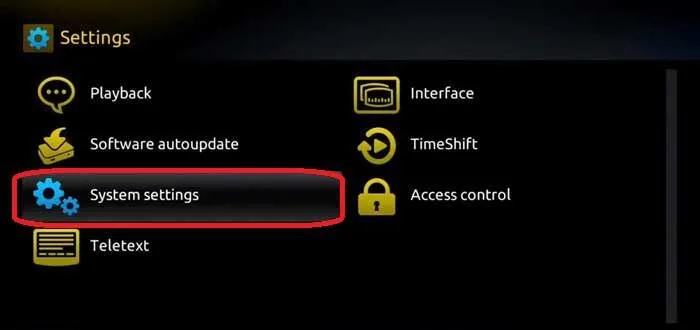
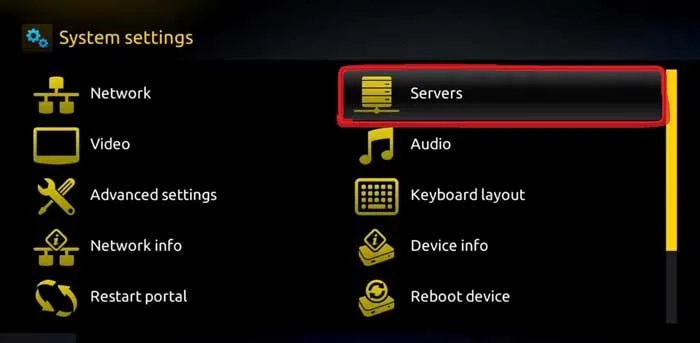
Step 4: Navigate to the Servers option.
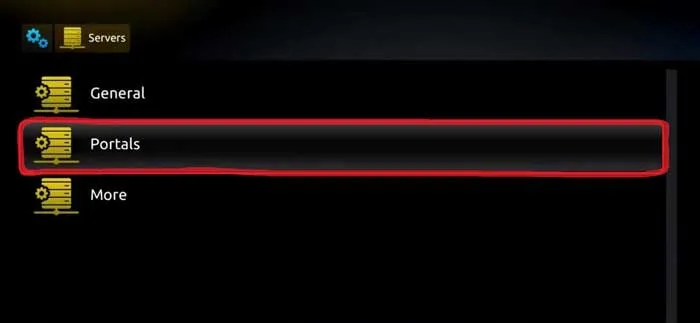
Step 5: Select the “Portals” option.
Step 7. Give the Portal a name then enter the link we have provided you
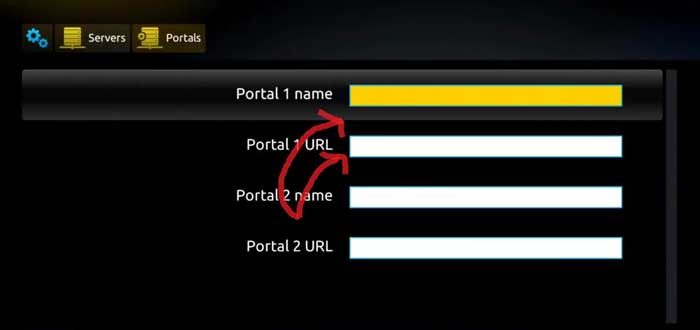
Step 8. Now, go back to the System settings and click on the restart portal option.
Done
Setup Guide For Windows/Mac
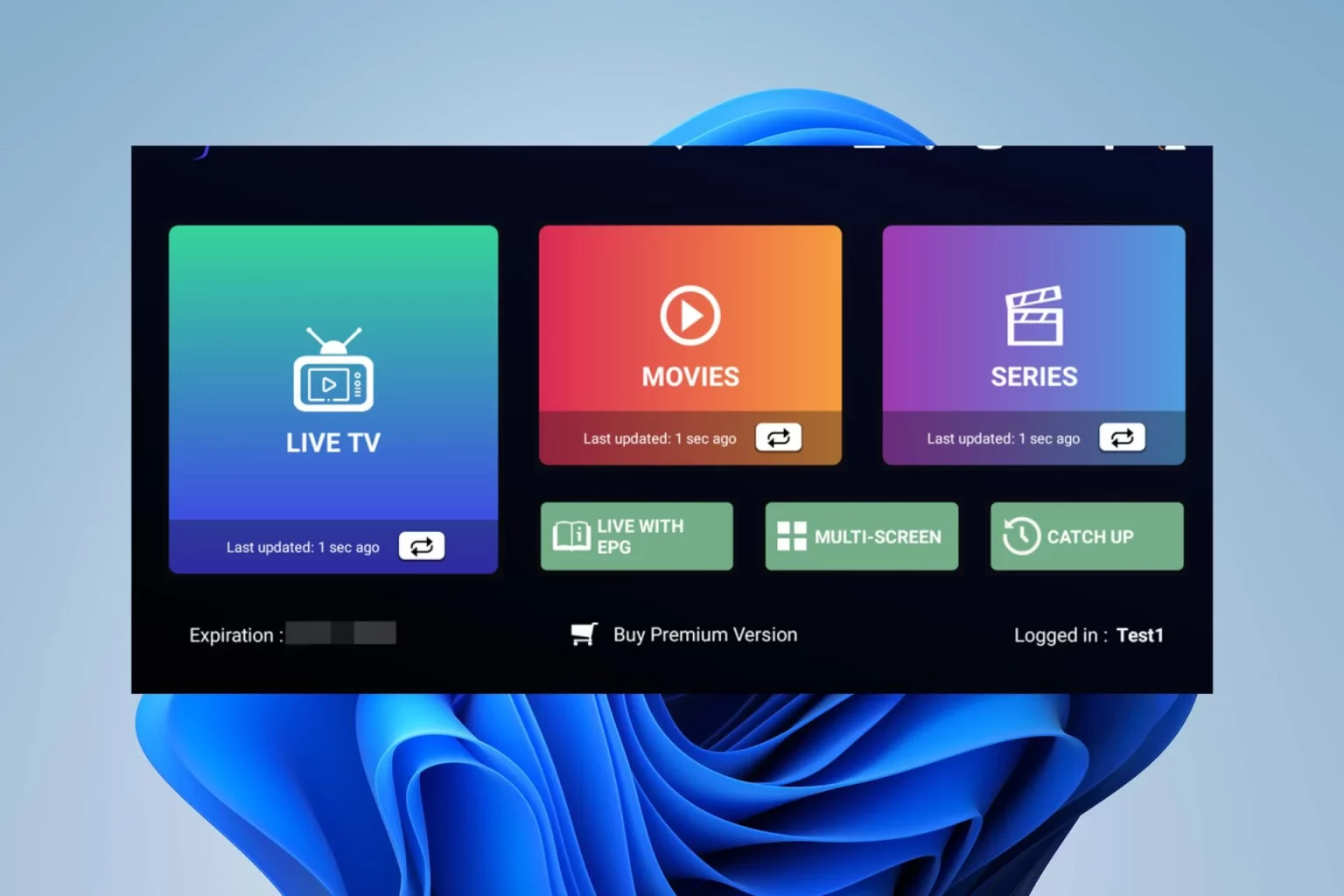
Windows:
Download IPTV Smarters app through this URL : https://www.iptvsmarters.com/download?download=windows_app
Download IPTV Smarters app through this URL : https://www.iptvsmarters.com/download?download=mac
Step 2. Open the Application and Accept the “License Agreement”.
Step 3. Choose Xtream Codes API (XC Codes API)
Step 4. Enter Your Playlist Details ( Username, Password, and HOST URL), and Click ADD USER.
Step 8. Wait For The Playlist To Be Downloaded
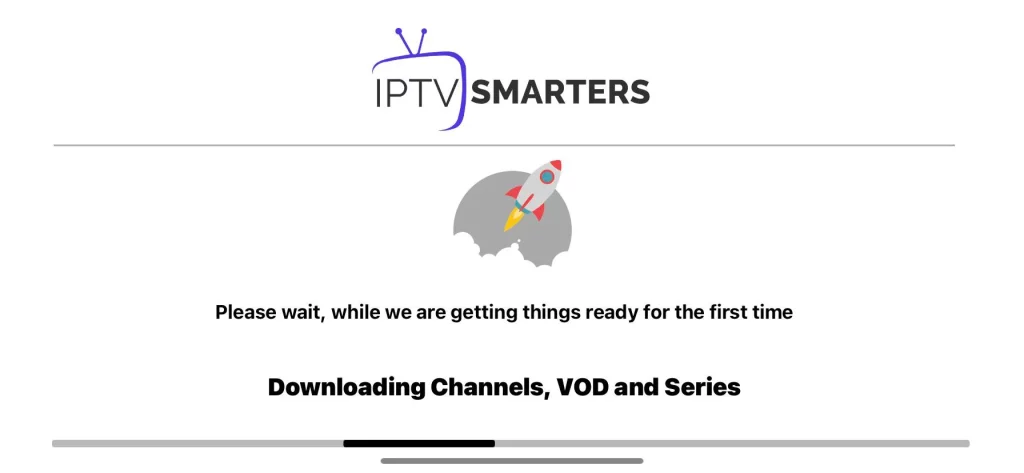
Step 8. Now you can Select The Category That you want to watch
Done
Setup Guide For IOS Devices
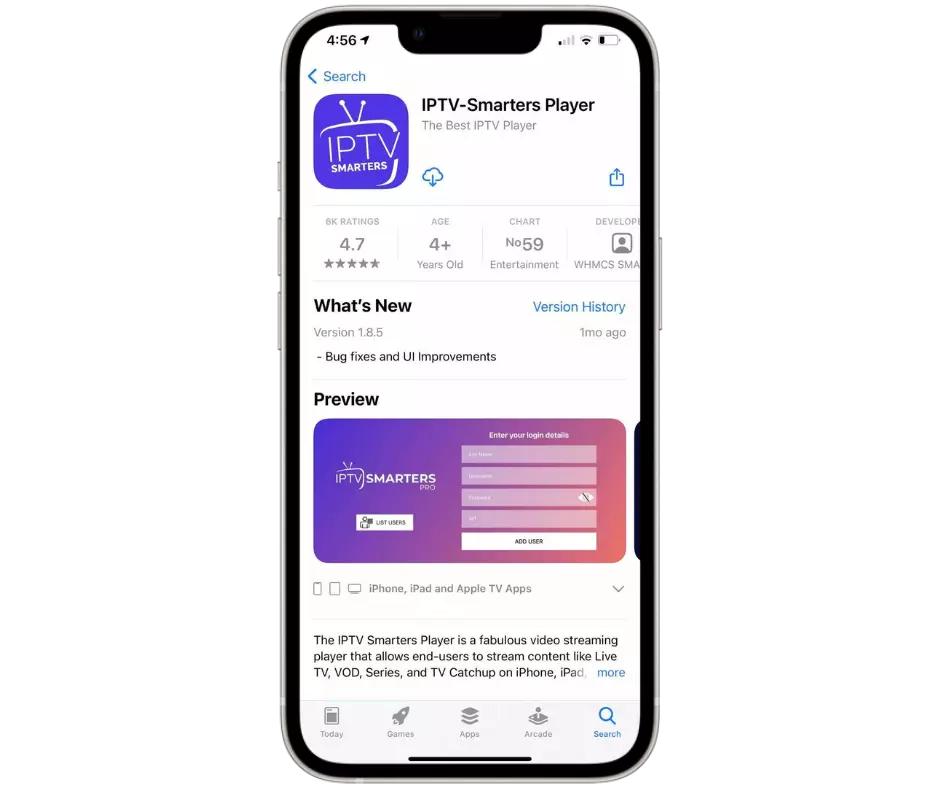
Step 1: Start by downloading IPTV Smarters Lite app through this URL:
https://apps.apple.com/in/app/smarters-player-lite/id1628995509
Step 2. Open the Application and Accept the “License Agreement”.
Step 3. Choose Xtream Codes API (XC Codes API)
Step 4. Enter Your Playlist Details ( Username, Password, and HOST URL), and Click ADD USER.
Step 8. Wait For The Playlist To Be Downloaded
Step 8. Now you can Select The Category That you want to watch
Done
Complete IPTV Installation Guide
This IPTV installation guide explains how to set up NigmaTV on Firestick, Android TV, Smart TV, Apple TV, Windows, Mac and MAG devices. Follow the steps below to install a compatible IPTV player, enter your subscription details and start streaming live TV, movies and TV shows.
How to Install IPTV on Popular Devices
Choose your device below and follow the IPTV setup instructions. Your subscription details may include an Xtream Codes login, M3U URL or portal URL depending on your compatible application.
Install IPTV on Firestick
Amazon Firestick is one of the most popular devices for IPTV streaming.
- Open the Amazon App Store or install a compatible downloader app.
- Install IPTV Smarters Pro, TiviMate or another supported player.
- Open the player and select Xtream Codes API or M3U Playlist.
- Enter the login information provided with your NigmaTV subscription.
- Save the profile and wait for channels and VOD content to load.
Install IPTV on Android TV
Android TV boxes and Google TV devices support many popular IPTV applications.
- Open the Google Play Store on your Android TV device.
- Search for TiviMate, IPTV Smarters Pro, XCIPTV or another supported app.
- Install and launch the selected IPTV player.
- Choose Xtream Codes Login or Add Playlist.
- Enter your username, password and server URL, then save the profile.
Install IPTV on Smart TV
Compatible Samsung and LG Smart TVs can use IPTV player applications available in their app stores.
- Open the application store on your Smart TV.
- Search for an available IPTV player such as IBO Player or SmartOne IPTV.
- Install and open the application.
- Note the device ID or MAC address shown by the app if required.
- Upload your playlist or enter the login details supplied by NigmaTV.
Install IPTV on Apple TV
Apple TV supports several IPTV players through the Apple App Store.
- Open the App Store on Apple TV.
- Search for IPTV Smarters Player, GSE Smart IPTV or another compatible player.
- Install the app and select Add User or Add Playlist.
- Enter your Xtream Codes login or M3U URL.
- Save the account and refresh the playlist.
Install IPTV on Windows and Mac
Desktop users can stream through compatible IPTV software or media players.
- Download a compatible IPTV player for Windows or macOS.
- Install and launch the application.
- Select Add Playlist, M3U URL or Xtream Codes API.
- Enter the credentials supplied with your subscription.
- Save the profile and choose the content category you want to watch.
Install IPTV on MAG Device
MAG boxes normally connect using a portal URL and the device MAC address.
- Open Settings on your MAG device.
- Go to System Settings and select Servers.
- Open Portals and enter the portal URL supplied by support.
- Save the changes and restart the MAG box.
- Wait for the portal and channel list to load.
Recommended IPTV Player Apps
Application availability depends on the device, operating system and app store. Choose a compatible IPTV player and use the login method provided with your subscription.
IPTV Installation Troubleshooting
Channels Are Not Loading
Confirm that your internet connection is working, check that the login information was entered correctly and restart the IPTV application.
Login Error
Check the username, password and server URL carefully. Avoid adding spaces before or after the login details.
Buffering or Freezing
Restart your router, close unnecessary applications and test a wired Ethernet connection when available.
Application Not Available
Choose another compatible IPTV player available for your device and region, then add the same subscription details.
IPTV Installation Guide FAQ
Which IPTV app should I use?
The best application depends on your device. TiviMate and IPTV Smarters Pro are commonly used on Android devices, while Smart TV and Apple TV users can choose compatible apps from their official app stores.
How do I install IPTV on Firestick?
Install a compatible IPTV player, open it, choose Xtream Codes or M3U Playlist, and enter the subscription details provided by NIGMATV.
Can I install IPTV on a Smart TV?
Yes. Many Samsung and LG televisions support IPTV player applications. Availability depends on the TV model, region and operating system.
What is an Xtream Codes login?
It is a login method that normally includes a username, password and server URL. These details allow a compatible IPTV player to load your subscription.
What should I do if IPTV is buffering?
Check your internet speed, restart the router and device, close unused apps and test another stream. A stable wired connection may improve performance.
Need Help Installing NigmaTV?
Contact the support team for assistance with compatible applications, account activation and setup on your preferred device.